> ## Documentation Index
> Fetch the complete documentation index at: https://docs.playflowcloud.com/llms.txt
> Use this file to discover all available pages before exploring further.
# Quick Start - Mirror WebGL
> Simple tutorial showing how easy PlayFlow makes it to host a server for your Mirror WebGL game
# Easy WebGL Hosting with PlayFlow
## How PlayFlow Makes WebGL Hosting Easy
For seamless WebGL gaming experiences in web browsers, secure WebSocket connections are crucial, but configuring them can be complex. Often, developers end up managing certificates and networking issues, which can be time-consuming. **With PlayFlow**, however, you only need to enable a simple option to handle these concerns effortlessly.
**Mirror** with SimpleWebTransport provides robust WebSocket support for WebGL builds, making it easy to deploy multiplayer games to web browsers.
## Before We Begin
This tutorial assumes you've already completed the [standard Mirror setup](/quickstart/mirror). In the following steps, we'll convert your project to support WebGL.
## Setup Steps
Mirror comes with SimpleWebTransport included by default. If you don't have it:
1. Ensure you have the latest version of Mirror
2. SimpleWebTransport should be in your project automatically
SimpleWebTransport is Mirror's official WebSocket transport for WebGL builds.
1. Select your NetworkManager in the scene
2. Add the **SimpleWebTransport** component to it
3. Remove or disable KCP Transport (not needed for WebGL)
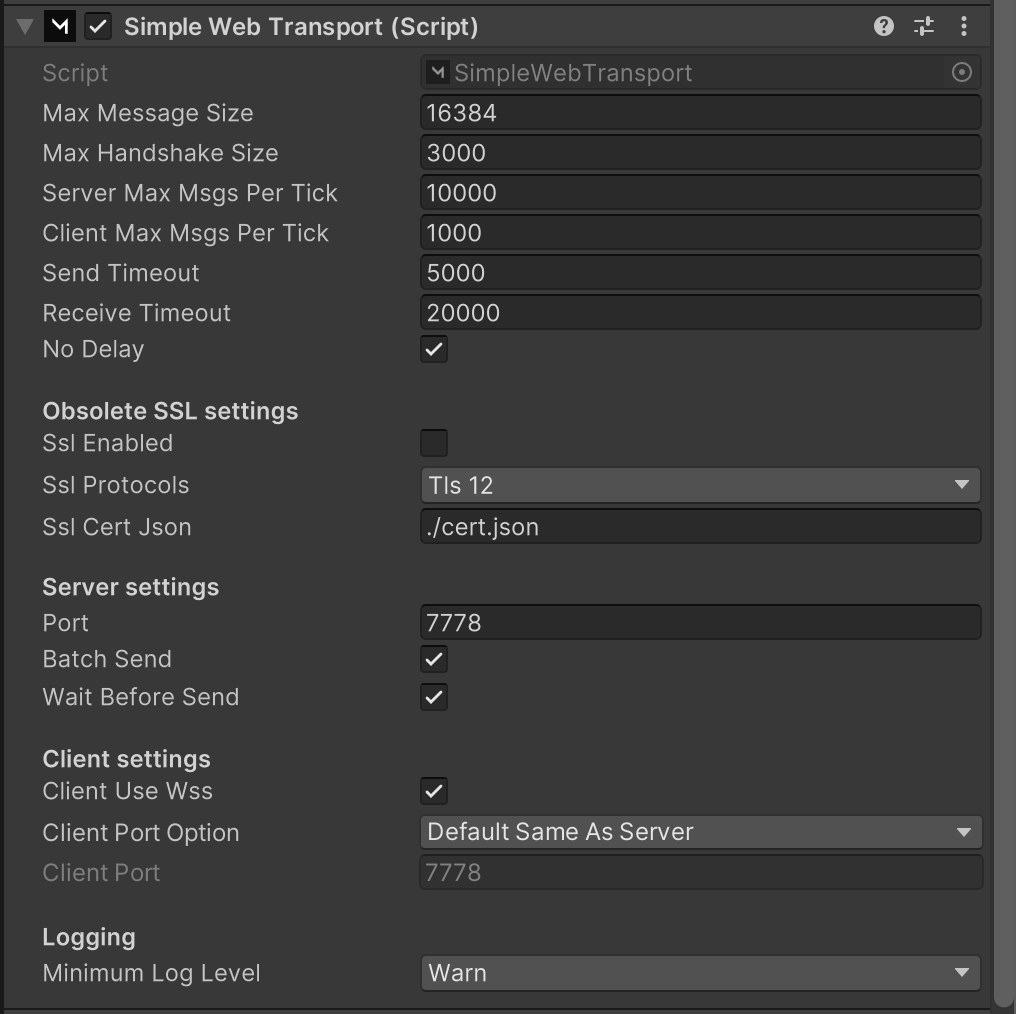 In the SimpleWebTransport component:
**Client settings:**
1. Enable **"Client Use Wss"** ✓ (WebSocket Secure)
2. Set **Client Port Option** to **"Use Custom Port"**
3. Set **Client Port** to match your PlayFlow external port (you'll get this later)
**Server settings:**
* Keep **Port** as `7778` (default)
The "Client Use Wss" option is critical for secure WebGL connections through PlayFlow.
Ensure **Auto Start Server Build** is checked in your NetworkManager - this will automatically start the server in headless builds.
Open the PlayFlow Cloud window from Unity toolbar (**PlayFlow → PlayFlow Cloud**).
Click **Upload Server** to build and upload your Unity server.
PlayFlow automatically builds a headless Linux server optimized for dedicated hosting.
In the [PlayFlow dashboard](https://app.playflowcloud.com/):
1. Navigate to **Configuration** tab
2. Add a new port or edit existing
3. **Port Name**: `mirror_webgl`
4. **Port Number**: `7778` (SimpleWebTransport default)
5. **Protocol**: **TCP**
6. **Enable TLS** ✓ (Critical for WebGL)
7. Save configuration
**Why TCP + TLS?** WebGL requires secure WebSocket connections. PlayFlow handles the SSL certificates automatically when you enable TLS.
1. Go to the **Servers** tab in PlayFlow
2. Click **Create Server**
3. Select your uploaded build
4. Choose your configuration
5. Launch the server
1. Click on your server instance's **Details**
2. Look for the **TLS Connection** information
3. In Unity, configure your client:
**In NetworkManager:**
* Set **Network Address** to the exact TLS hostname shown on the server detail page (PlayFlow serves TCP/TLS traffic through a relay host such as `relay.computeflow.cloud`)
**In SimpleWebTransport:**
* Set **Client Port** to the External Port from PlayFlow
* Ensure **Client Use Wss** is checked ✓
* Ensure **Client Port Option** is set to **Use Custom Port**
**Important:** For TLS/WSS connections, read the host and external port straight from the server's details (these come from the `network_ports[]` array in the server API response). Use the hostname shown there, not an IP address, and never hardcode a port — the external port is proxy-allocated and differs from the port your server listens on.
1. In Unity, switch to **WebGL** platform in Build Settings
2. Build your game
3. Zip the built files
4. Upload to your chosen hosting platform (e.g., itch.io, GitHub Pages, Netlify)
PlayFlow hosts your game **servers**, not your WebGL client build. Host the client on any static web host — popular options include itch.io, GitHub Pages, and Netlify.
## Success!
Just like that, you've created a server and have your clients in the web browser securely connecting to it!
## Troubleshooting
* Verify TLS is enabled in PlayFlow port settings
* Check that "Client Use Wss" is enabled in SimpleWebTransport
* Ensure "Client Port Option" is set to "Use Custom Port"
* Verify client is using the TLS hostname (not IP address)
* Confirm the correct external port is configured
If you have both KCP and SimpleWebTransport on your NetworkManager, make sure only SimpleWebTransport is active for WebGL builds. You can use platform-specific code to switch transports.
Don't modify the SSL settings in SimpleWebTransport - PlayFlow handles all certificates automatically when TLS is enabled in the port configuration.
Remember that the server listens on the port you set in SimpleWebTransport (default 7778), but clients connect through PlayFlow's external port. Always use the external port for client connections.
## Resources
* **PlayFlow Documentation**: [docs.playflowcloud.com](https://docs.playflowcloud.com/)
* **PlayFlow Discord**: [discord.gg/P5w45Vx5Q8](https://discord.gg/P5w45Vx5Q8)
* **Mirror Documentation**: [mirror-networking.gitbook.io](https://mirror-networking.gitbook.io/docs/)
* **Mirror Discord**: [discord.gg/mirror](https://discord.gg/mirror)
## Related Guides
Advanced WebGL deployment strategies
Standard Mirror setup for desktop/mobile
Add lobbies to your WebGL game
In the SimpleWebTransport component:
**Client settings:**
1. Enable **"Client Use Wss"** ✓ (WebSocket Secure)
2. Set **Client Port Option** to **"Use Custom Port"**
3. Set **Client Port** to match your PlayFlow external port (you'll get this later)
**Server settings:**
* Keep **Port** as `7778` (default)
The "Client Use Wss" option is critical for secure WebGL connections through PlayFlow.
Ensure **Auto Start Server Build** is checked in your NetworkManager - this will automatically start the server in headless builds.
Open the PlayFlow Cloud window from Unity toolbar (**PlayFlow → PlayFlow Cloud**).
Click **Upload Server** to build and upload your Unity server.
PlayFlow automatically builds a headless Linux server optimized for dedicated hosting.
In the [PlayFlow dashboard](https://app.playflowcloud.com/):
1. Navigate to **Configuration** tab
2. Add a new port or edit existing
3. **Port Name**: `mirror_webgl`
4. **Port Number**: `7778` (SimpleWebTransport default)
5. **Protocol**: **TCP**
6. **Enable TLS** ✓ (Critical for WebGL)
7. Save configuration
**Why TCP + TLS?** WebGL requires secure WebSocket connections. PlayFlow handles the SSL certificates automatically when you enable TLS.
1. Go to the **Servers** tab in PlayFlow
2. Click **Create Server**
3. Select your uploaded build
4. Choose your configuration
5. Launch the server
1. Click on your server instance's **Details**
2. Look for the **TLS Connection** information
3. In Unity, configure your client:
**In NetworkManager:**
* Set **Network Address** to the exact TLS hostname shown on the server detail page (PlayFlow serves TCP/TLS traffic through a relay host such as `relay.computeflow.cloud`)
**In SimpleWebTransport:**
* Set **Client Port** to the External Port from PlayFlow
* Ensure **Client Use Wss** is checked ✓
* Ensure **Client Port Option** is set to **Use Custom Port**
**Important:** For TLS/WSS connections, read the host and external port straight from the server's details (these come from the `network_ports[]` array in the server API response). Use the hostname shown there, not an IP address, and never hardcode a port — the external port is proxy-allocated and differs from the port your server listens on.
1. In Unity, switch to **WebGL** platform in Build Settings
2. Build your game
3. Zip the built files
4. Upload to your chosen hosting platform (e.g., itch.io, GitHub Pages, Netlify)
PlayFlow hosts your game **servers**, not your WebGL client build. Host the client on any static web host — popular options include itch.io, GitHub Pages, and Netlify.
## Success!
Just like that, you've created a server and have your clients in the web browser securely connecting to it!
## Troubleshooting
* Verify TLS is enabled in PlayFlow port settings
* Check that "Client Use Wss" is enabled in SimpleWebTransport
* Ensure "Client Port Option" is set to "Use Custom Port"
* Verify client is using the TLS hostname (not IP address)
* Confirm the correct external port is configured
If you have both KCP and SimpleWebTransport on your NetworkManager, make sure only SimpleWebTransport is active for WebGL builds. You can use platform-specific code to switch transports.
Don't modify the SSL settings in SimpleWebTransport - PlayFlow handles all certificates automatically when TLS is enabled in the port configuration.
Remember that the server listens on the port you set in SimpleWebTransport (default 7778), but clients connect through PlayFlow's external port. Always use the external port for client connections.
## Resources
* **PlayFlow Documentation**: [docs.playflowcloud.com](https://docs.playflowcloud.com/)
* **PlayFlow Discord**: [discord.gg/P5w45Vx5Q8](https://discord.gg/P5w45Vx5Q8)
* **Mirror Documentation**: [mirror-networking.gitbook.io](https://mirror-networking.gitbook.io/docs/)
* **Mirror Discord**: [discord.gg/mirror](https://discord.gg/mirror)
## Related Guides
Advanced WebGL deployment strategies
Standard Mirror setup for desktop/mobile
Add lobbies to your WebGL game