> ## Documentation Index
> Fetch the complete documentation index at: https://docs.playflowcloud.com/llms.txt
> Use this file to discover all available pages before exploring further.
# Unity Modules Setup
> Install the required Unity modules to build dedicated servers for PlayFlow.
# Unity Modules Setup
To build **Unity dedicated servers** for PlayFlow, you need to install specific Linux build modules. PlayFlow deploys servers on Linux infrastructure, so these modules are essential for creating compatible server builds.
Without the proper Linux modules installed, Unity will not be able to build dedicated servers for PlayFlow deployment.
## Prerequisites
* **Unity Hub** installed, so you can add build modules to your Unity installation.
* The **PlayFlow Unity SDK** installed in your project (see below).
## Install the PlayFlow Unity SDK
First, make sure you have the PlayFlow Unity SDK installed. The recommended method is the Unity Package Manager Git URL:
```
https://github.com/PlayFlowCloud/PlayFlow-Multiplayer-Unity-SDK.git
```
Step-by-step instructions for installing the PlayFlow Unity SDK via the Package Manager Git URL
## Required Unity Modules by Version
The modules you need depend on your Unity version. Install the appropriate Linux build support modules:
### Unity 2021.2 and Above
For Unity 2021.2+, install these modules through Unity Hub:
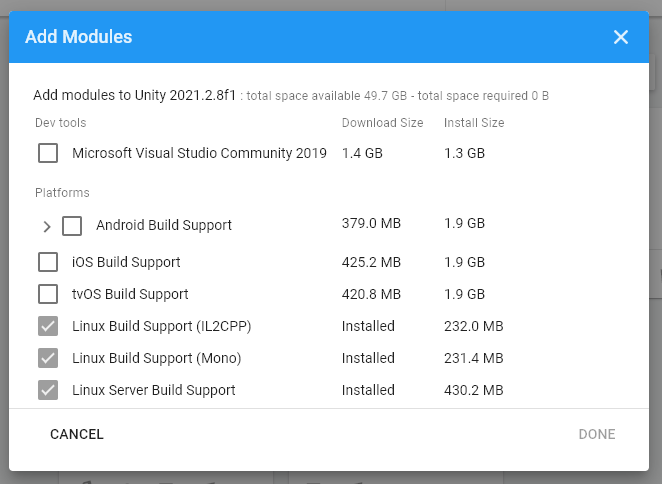 **Required Modules:**
* **Linux Build Support (IL2CPP)** - Essential for Linux server builds
* **Linux Build Support (Mono)** - Alternative scripting backend support
### Unity 2020.x and Earlier
For Unity versions older than 2021.2, install these modules:
**Required Modules:**
* **Linux Build Support (IL2CPP)** - Essential for Linux server builds
* **Linux Build Support (Mono)** - Alternative scripting backend support
### Unity 2020.x and Earlier
For Unity versions older than 2021.2, install these modules:
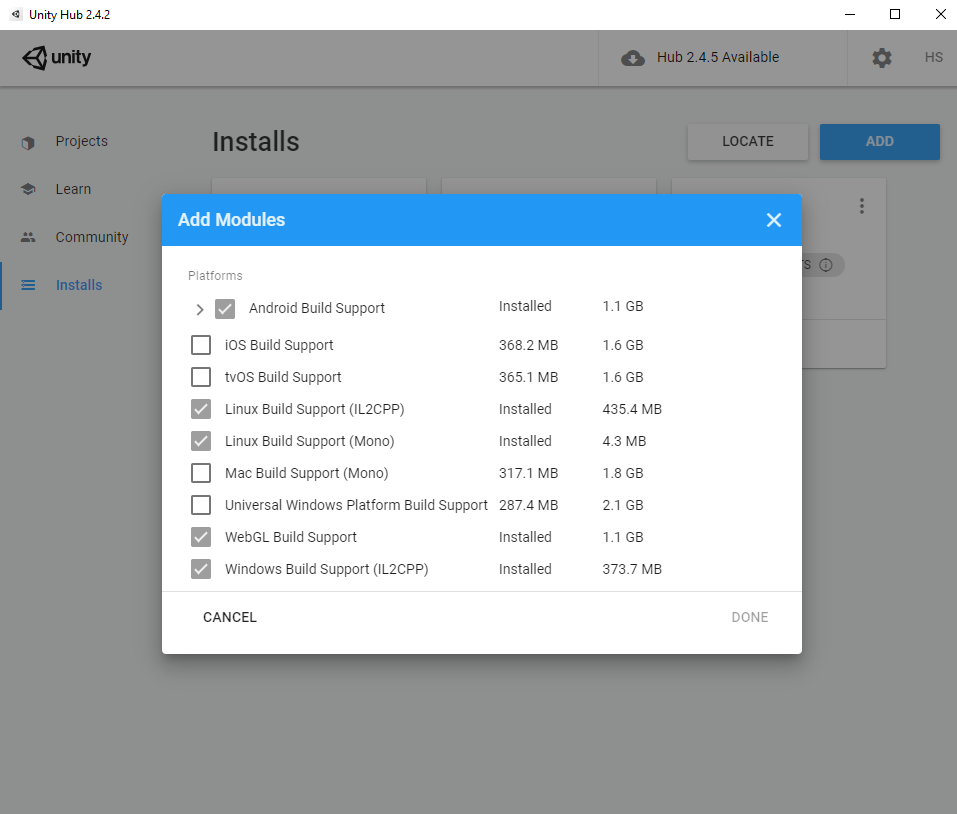 **Required Modules:**
* **Linux Build Support** - Core Linux build capability
* **Linux Build Support (IL2CPP)** - IL2CPP scripting backend
* **Linux Build Support (Mono)** - Mono scripting backend
Unity versions older than 2021.2 have different module names but serve the same purpose for Linux server builds.
## How to Install Unity Modules
### Via Unity Hub
1. Open **Unity Hub**
2. Go to **Installs** tab
3. Click the **gear icon** next to your Unity version
4. Select **Add Modules**
5. Check the **Linux Build Support** options shown above
6. Click **Install**
### Via Unity Editor
1. Open Unity Editor
2. Go to **File → Build Settings**
3. Select **Linux** as target platform
4. If modules are missing, Unity will prompt you to install them
5. Click **Install with Unity Hub**
## Verify Installation
To confirm your modules are installed correctly:
1. Open **File → Build Settings**
2. You should see **Linux** available in the Platform list
3. Select Linux and click **Switch Platform**
4. If successful, you're ready to build dedicated servers
***
## Next Steps
Once your Unity modules are properly installed, you're ready to build and deploy your first server:
Build and deploy your first dedicated server with PlayFlow
Complete PlayFlow setup instructions
Deploy browser-based multiplayer games
Explore new features and improvements
**Required Modules:**
* **Linux Build Support** - Core Linux build capability
* **Linux Build Support (IL2CPP)** - IL2CPP scripting backend
* **Linux Build Support (Mono)** - Mono scripting backend
Unity versions older than 2021.2 have different module names but serve the same purpose for Linux server builds.
## How to Install Unity Modules
### Via Unity Hub
1. Open **Unity Hub**
2. Go to **Installs** tab
3. Click the **gear icon** next to your Unity version
4. Select **Add Modules**
5. Check the **Linux Build Support** options shown above
6. Click **Install**
### Via Unity Editor
1. Open Unity Editor
2. Go to **File → Build Settings**
3. Select **Linux** as target platform
4. If modules are missing, Unity will prompt you to install them
5. Click **Install with Unity Hub**
## Verify Installation
To confirm your modules are installed correctly:
1. Open **File → Build Settings**
2. You should see **Linux** available in the Platform list
3. Select Linux and click **Switch Platform**
4. If successful, you're ready to build dedicated servers
***
## Next Steps
Once your Unity modules are properly installed, you're ready to build and deploy your first server:
Build and deploy your first dedicated server with PlayFlow
Complete PlayFlow setup instructions
Deploy browser-based multiplayer games
Explore new features and improvements